
How to use the Client Portal
Your mortgage adviser has invited you to use our Client Portal. A secure, easy-to-use platform designed to make your mortgage journey smoother and faster. You can access the portal 24/7 via mobile, tablet or desktop.
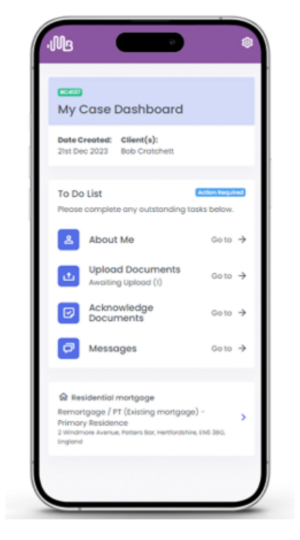
Keep connected, all in one place.
Stay connected with your adviser, securely upload documents, and track your mortgage progress. The portal keeps your information encrypted and protected, while making it easy to share details, send secure messages, and monitor your application anytime.
Logging in for the first time
Look out for your invitation email from your mortgage adviser.
Once you have received this email, click the link provided and create a password meeting the following criteria:
Minimum 12 characters
Combination of upper and lowercase letters
At least one number
At least one symbol
Confirm your password.
TIP: You can bookmark this page to make it quicker and easier to log in each time.


Two-factor authentication
Log in with your email and password.
You’ll then be prompted to confirm your sign in with a verification code. This will be sent to your email address.
Add in the code in the box and verify to complete this extra layer of security.
Accepting the Terms & Conditions
Our Terms & Conditions will automatically appear the first time you log into the portal.
Please read, scroll down to the bottom and tick the box to confirm you have read them before proceeding.


Your dashboard
From the cases dashboard you can navigate through different sections, including
Messages: Send and receive messages from your Mortgage Adviser
About me: Complete fact find details about yourself to help speed up the application process
Upload documents: You may be asked to upload documents such as ID, payslips or bank statements
Acknowledge documents: Your adviser may send you documents which you can acknowledge via the portal
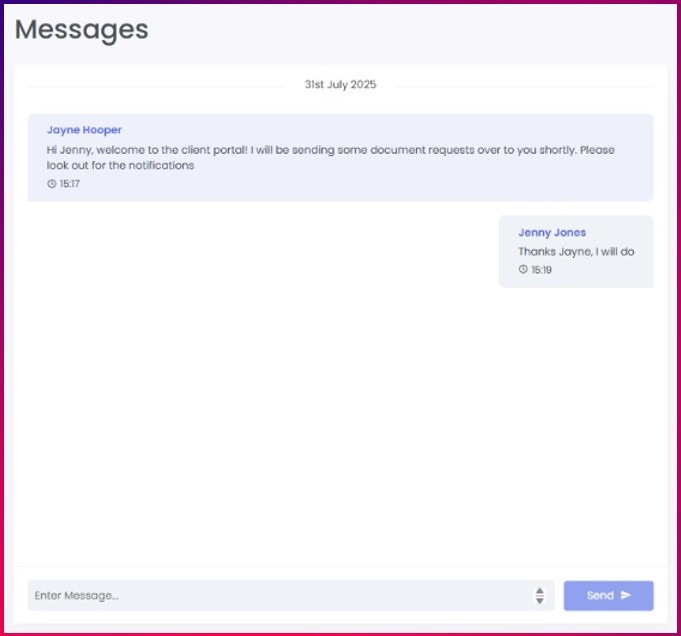
Send or Receive a message
All communication through the portal is secure.
It’s easy to send a message to your mortgage adviser. Simply go to the ‘Messages’ section. Type your message and send.
You’ll receive an email notification whenever your adviser sends you a message. Simply log in to read and reply securely.

Help complete fact find information
Your mortgage adviser may ask you to complete your personal and financial details through the portal.
To complete this simply go to ‘About Me’ and enter the requested information in the different sections. If your adviser has already added details you will be able to review and update as needed.
Your information updates in real-time within your adviser’s system, helping avoid delays and repeated questions.
Once a product recommendation has been made, your data will be locked to ensure accuracy and protect the information submitted.
Uploading documents
Your adviser may request documents which can be uploaded via the portal.
To do this simply go to ‘Upload Documents’. Drag and drop your file or select it from your device and press submit.
You’ll receive instant confirmation once the upload is successful.
Please note the maximum file size is 8MB per document.If your file is larger, you may need to reduce the size or split it into separate uploads.
Once uploaded, your adviser is automatically notified and will review your documents.


Acknowledge Documents
Your adviser may ask you to acknowledge documents within the portal. You may receive an email notification prompting you to log in and complete this step.
Once in the portal you can simply navigate to ‘Acknowledge Documents’ section.
Open the document to review and click confirm that you have reviewed and accepted it.
This helps ensure you’ve seen and understood the document, there is a secure record of confirmation and the process can move forward without delay.
Raise a New Enquiry
If you need advice about something new, you can ‘Raise a New Enquiry’ straight from your Client Portal.
Simply complete the short form to tell your adviser what you’re looking for. It’s quick, secure and saves time as there’s no need to arrange an initial phone call to get started.
Your enquiry is sent securely to your mortgage adviser and as things move forward, you’ll receive real-time updates in your Client Portal so you can track progress every step of the way.
